Sometimes, a member show twice on a walk. There can be two reasons for this
- It’s mistake. The member has forgotten they’ve already booked or they have had problems using the system.
- They trying to book for another member or guest.
In the the case of duplicate booking the best course of action is to cancel the booking and if necessary
issue a credit. See Cancel an Order for an in depth discussion on
on how to do this.
Booking for Another Member or Guest
This is not encouraged and, depending on the payment method can be difficult to handle.
The method described below works in dependant of the payment method and can also be used
to transfer credits between partners.
Find the Duplicate Booking
Locate the order containing the the duplicate booking
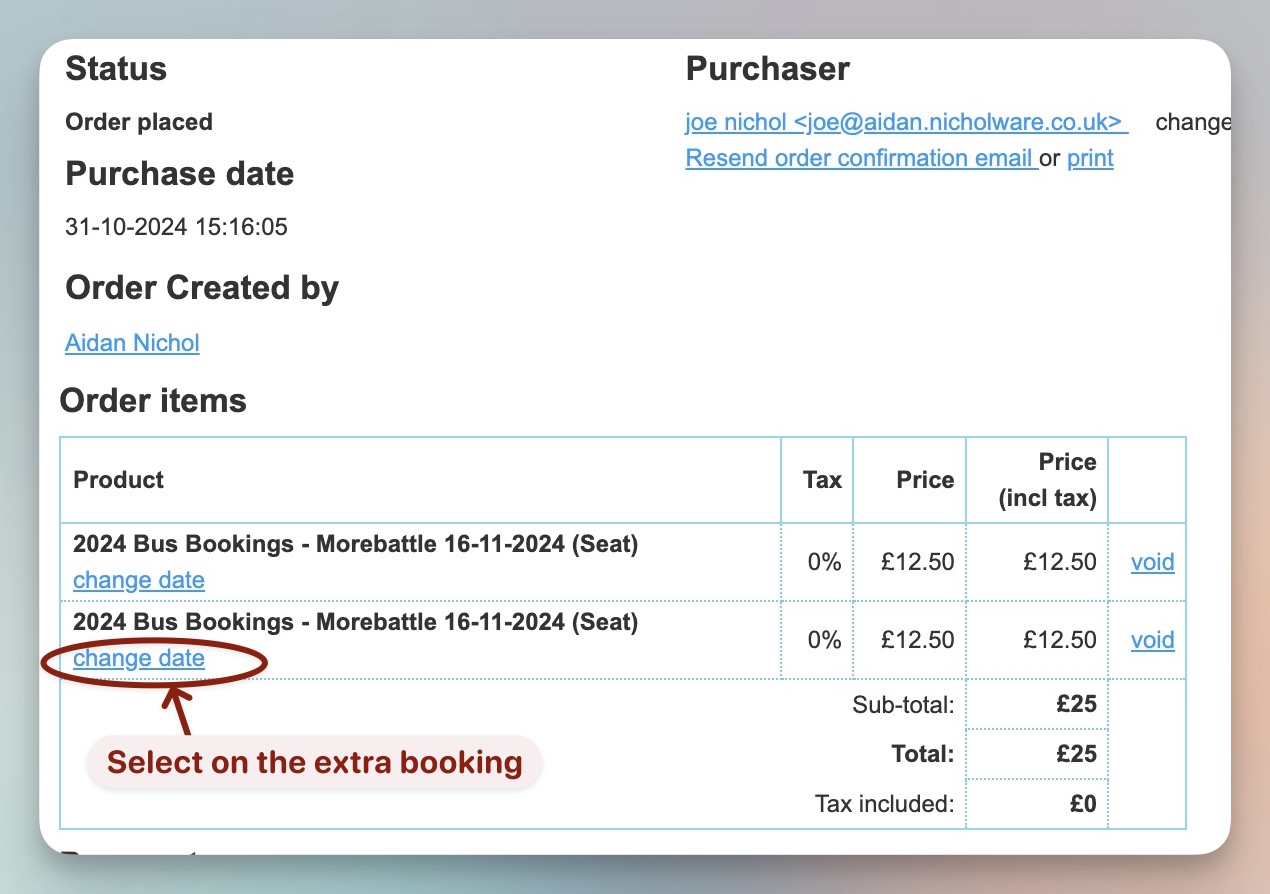
and select change date on the relevant order item
Transfer the Funds
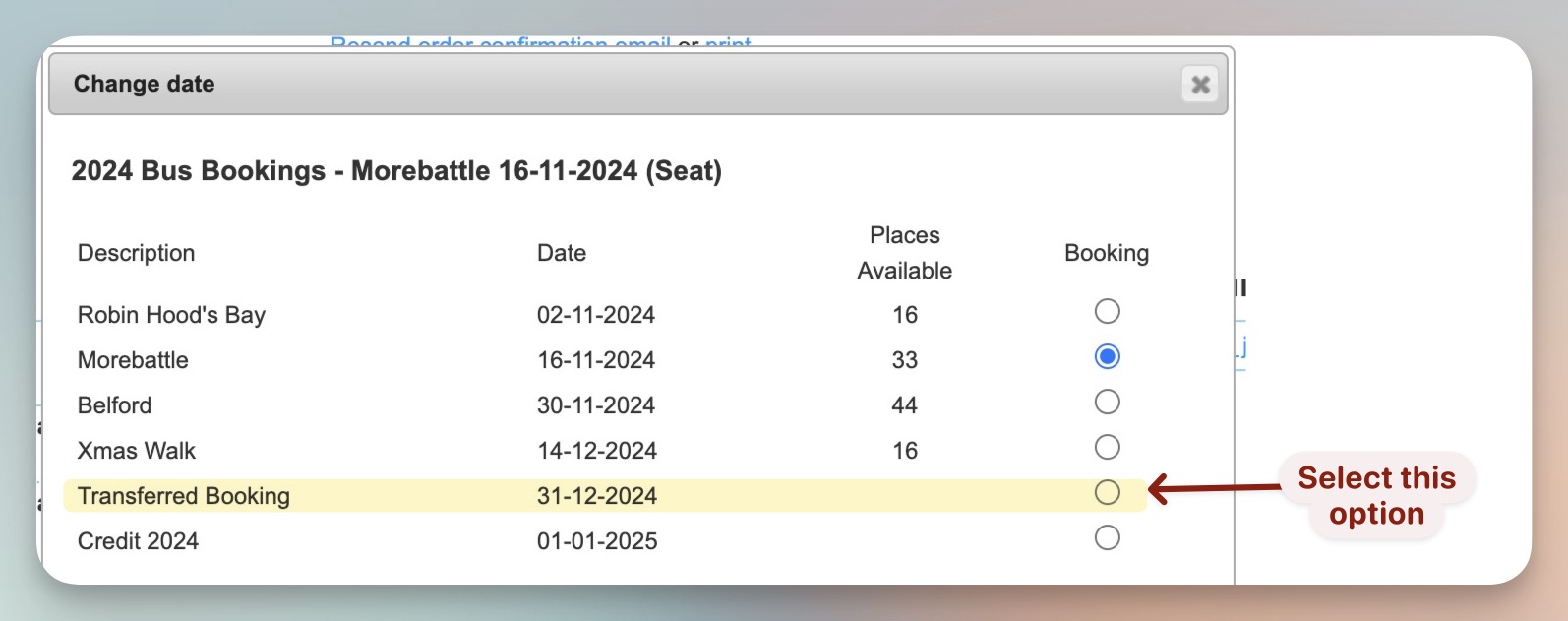
Change the walk date from the real walk to Transfer Booking. This keeps the money in a separate
pot away from walks and credits but still associated with the member who actually
made the payment
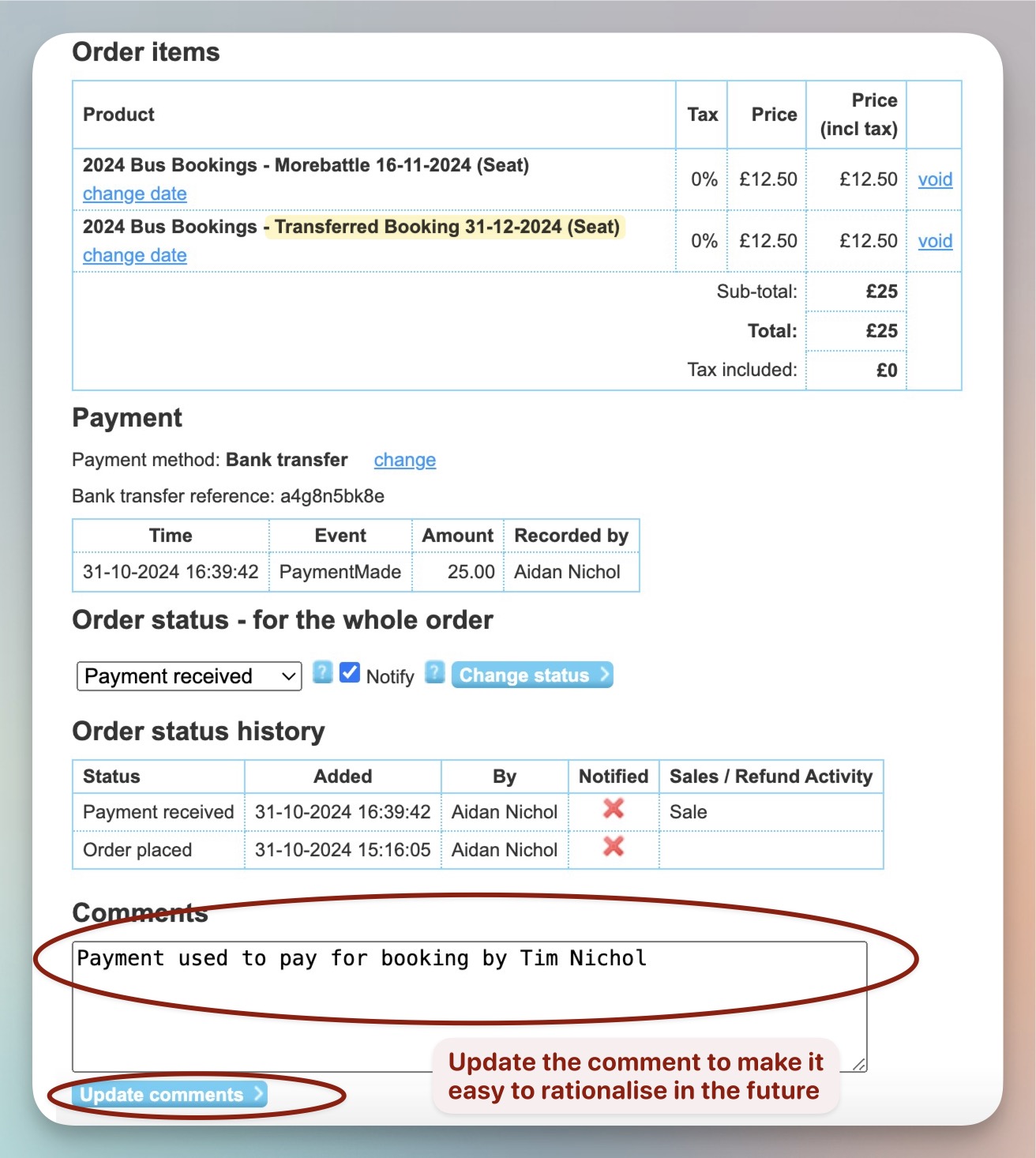
and add a comment to the order stating where the money was used
Make a Booking for the the Other Member or Guest
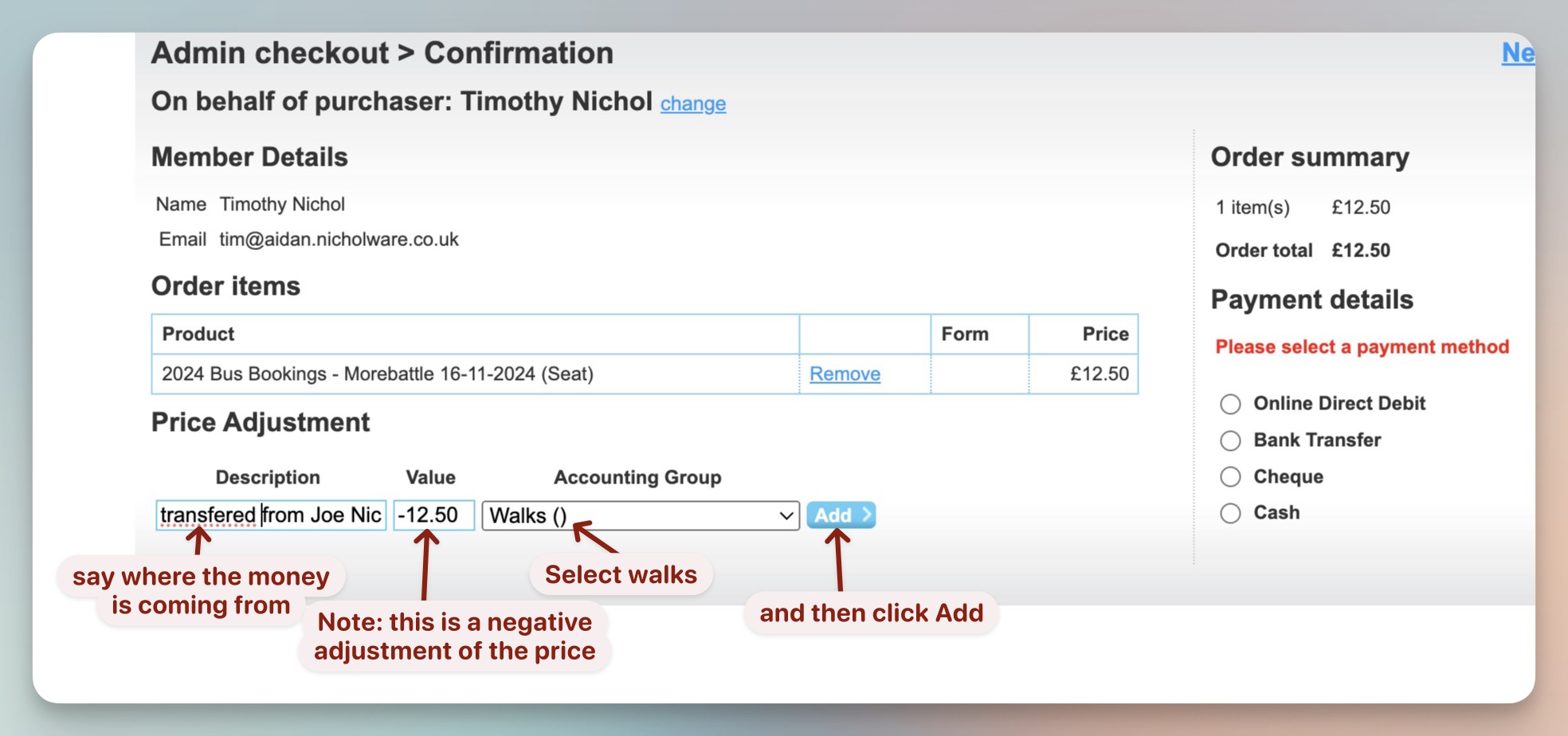
Place the order in the standard until you get to the stage of selecting the payment method.
There are some input fields where the price to be paid can be adjusted. Note that
is is the amount to adjust the price and not a new price.
So in the case of the walk fee being paid by somebody else it would -12.50
(not the negative sign).
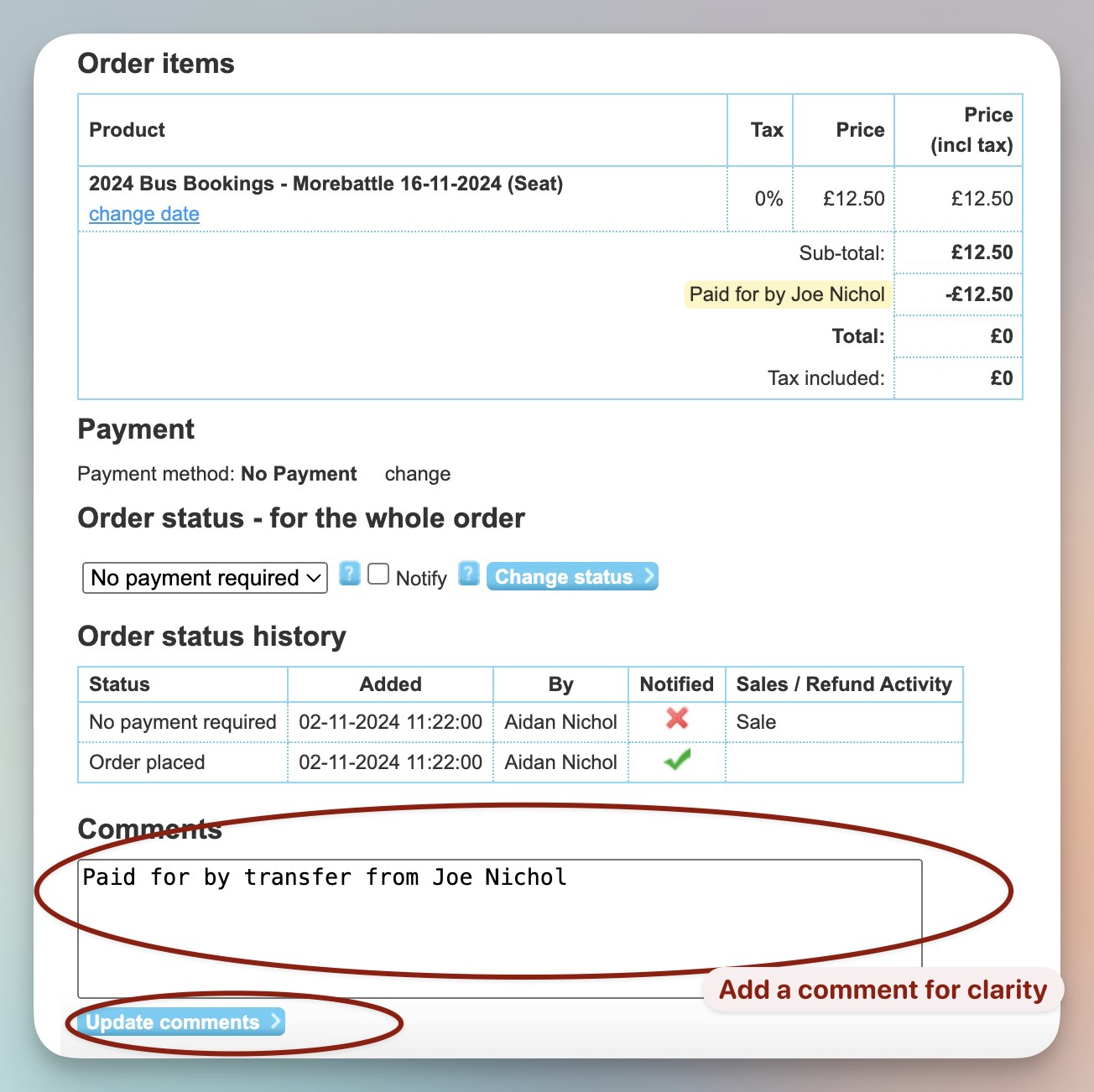
Clicking add results in a screen like this and if the whole fee has been paid
then the resulting total will be zero and the payment method will show
*No Payment Required.
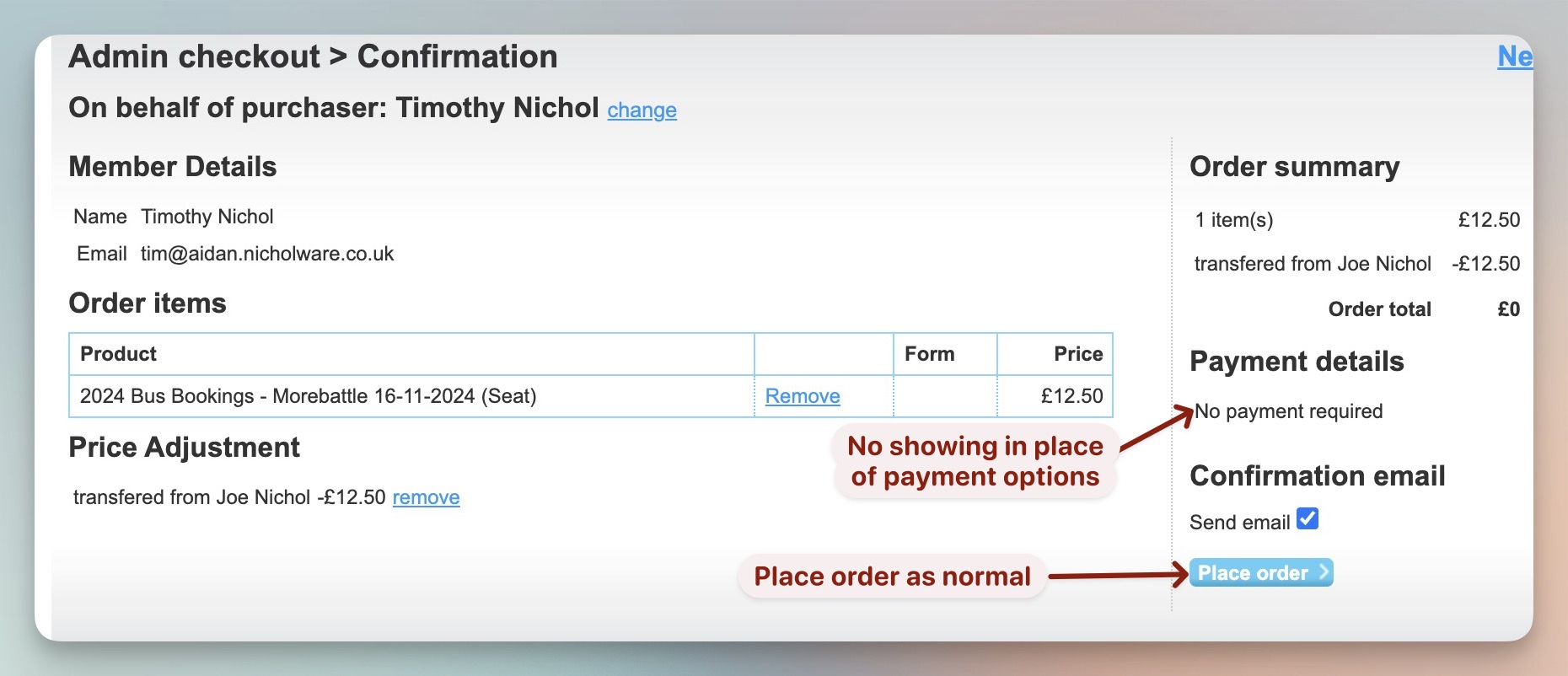
Place the order and add a comment to the order status